 SellClaw
Amazon keyword research is the process of finding the exact search terms shoppers type into Amazon — and then placing those terms where Amazon's search engine and buyers will see them. Get it right and your products surface for the searches that actually drive sales. Get it wrong and even a great product stays invisible. This guide covers how Amazon search works, where keywords belong in your listing, and how to find high-value keywords using a free Amazon keyword research tool.
What is Amazon keyword research?
Amazon keyword research is the practice of discovering, analyzing, and prioritizing the search terms Amazon shoppers use to find products like yours. Unlike broad SEO research, it focuses on marketplace search behavior — terms typed directly into the Amazon search bar by people who are ready to buy.
Amazon keywords generally fall into a few types:
- Primary product keywords — the core term for your product (e.g., "chef knife")
- Long-tail keywords — longer, specific phrases with clearer intent (e.g., "8 inch japanese chef knife for beginners")
- Competitor keywords — terms that competing listings already rank for
- Backend keywords — hidden search terms you add in Seller Central that shoppers never see but Amazon still indexes
How Amazon keyword research differs from Google SEO
The two are often confused, but the intent behind an Amazon search is different from a Google search.
- Buyer intent is higher. People search Amazon to buy, not to read. Almost every Amazon query is commercial.
- Ranking signals are different. Google weighs backlinks and content depth. Amazon's algorithm weighs relevance plus sales performance — click-through rate, conversion rate, and sales velocity.
- Keyword placement is structured. On Amazon, keywords live in defined fields — title, bullets, description, and backend terms — not free-form articles.
That is why keyword research built for Google does not fully translate to Amazon. You need marketplace-specific search data and an Amazon-first workflow.
Why Amazon keyword research matters
Amazon's search engine (often referred to as A9/A10) decides which products appear for a given search. It ranks listings on two broad factors: relevance and performance.
Relevance comes from keywords. If a shopper searches for a term that does not appear anywhere in your listing, Amazon has no reason to show your product. Your listing is simply not indexed for that term.
Performance comes from how shoppers behave once they see you — clicks, conversions, and sales velocity. Strong keywords bring in relevant traffic, and relevant traffic converts better, which in turn improves your rank.
Here is why solid keyword research pays off:
- You get indexed for the right searches. Every relevant keyword you cover is another entry point to your listing.
- You lower your PPC costs. Targeting relevant long-tail keywords in Sponsored Products campaigns usually means less competition and a lower cost per click.
- You match real buyer language. Keyword data shows the exact words shoppers use, which sharpens your titles, bullets, and ad targeting.
- You find gaps competitors miss. Long-tail and niche terms are often under-served, and those are the easiest places to rank first.
Where keywords go in an Amazon listing
Finding keywords is only half the job. On Amazon, where you place them matters as much as which ones you choose. Each field carries different weight.
Product title. The strongest relevance signal. Place your primary keyword and one or two important secondary keywords here, written naturally so it still reads well to a shopper. Do not overload it.
Bullet points. Use bullets to work in secondary keywords and buyer-intent phrases while describing benefits and features. Write for the shopper first, then check that key terms are covered.
Product description and A+ Content. This section reinforces relevance and helps conversion. Weave in remaining keywords naturally. If you have Brand Registry, A+ Content replaces the plain description visually, but you should still cover key terms in the text.
Backend search terms. These hidden fields in Seller Central let you add keywords that did not fit the visible listing — synonyms, alternate spellings, and related terms. Do not repeat words already in your title, do not use commas, and stay within Amazon's byte limit. This is where a lot of your long-tail research quietly earns its keep.
A good rule: your highest-value keywords go in the title, supporting keywords go in bullets and description, and everything else worth indexing goes in the backend.
How to do Amazon keyword research with SellClaw
The SellClaw Amazon keyword research tool pulls real Amazon search suggestions for any seed keyword, so you can build your keyword list from actual shopper behavior instead of guesswork. Here is the workflow.
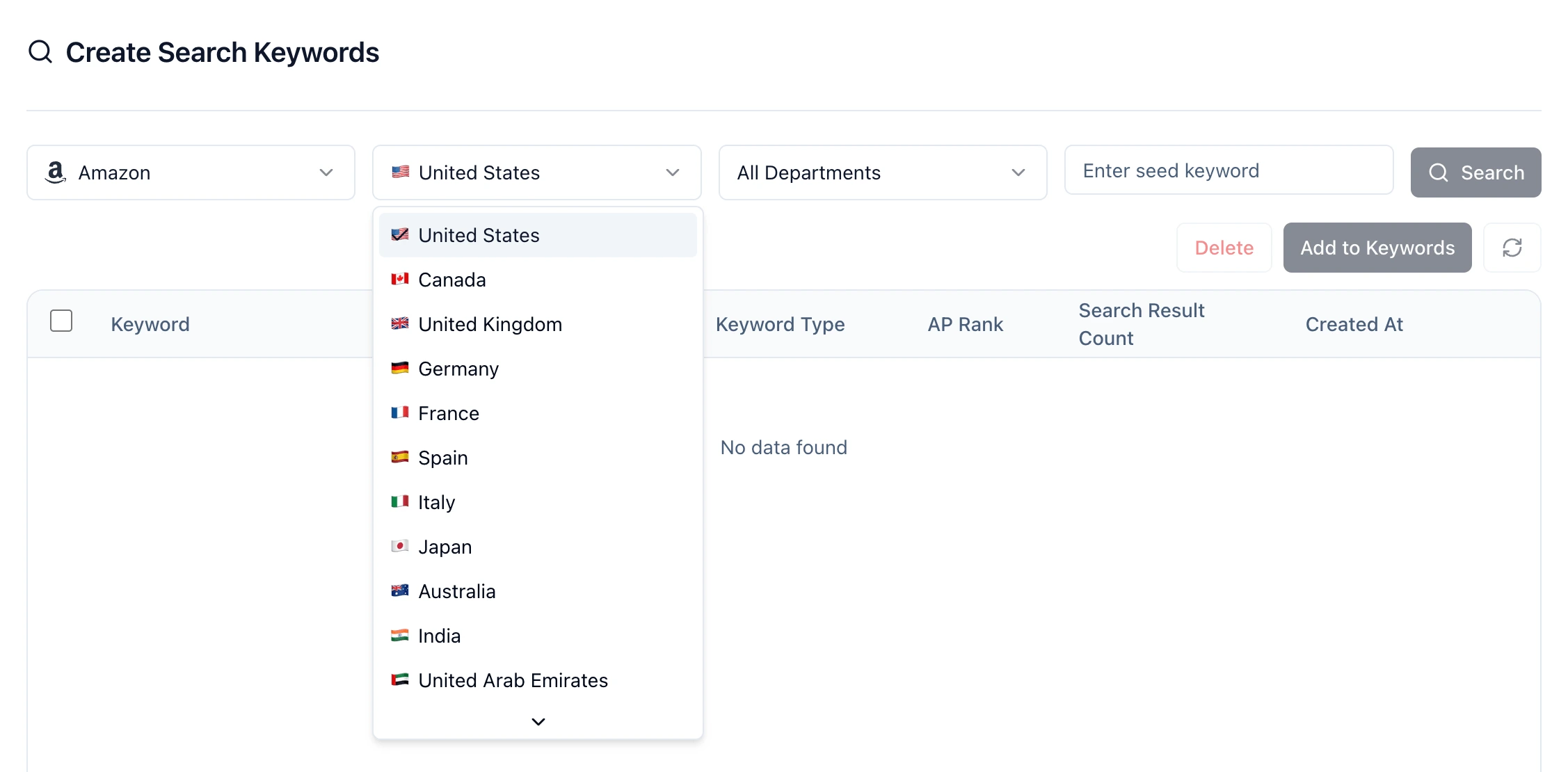
Step 1: Set your source, marketplace, and department
Before you search, choose three things:
- Source — the marketplace you are researching (Amazon).
- Marketplace — the specific Amazon region you want to research. The tool covers 22 Amazon marketplaces: the United States, Canada, the United Kingdom, Germany, France, Spain, Italy, Japan, Australia, India, the United Arab Emirates, Saudi Arabia, Mexico, Brazil, the Netherlands, Poland, Sweden, Belgium, Turkey, Singapore, Egypt, and South Africa. Search behavior varies by country, so this keeps your data relevant to where you sell.
- Department — the Amazon category, such as Kitchen or Electronics. Leaving it on All Departments gives the broadest results, while narrowing it focuses suggestions on your product's category.
These settings matter more on Amazon than on general search tools, because the same seed keyword returns very different suggestions across regions and categories.
Step 2: Enter a seed keyword and run the search
Type a seed keyword — the core term that describes your product, like "chef knife" — and start the search. The tool pulls keywords from two places on Amazon at once. First, it collects autocomplete suggestions — the phrases Amazon proposes as shoppers type your seed into the search bar. Second, it gathers the related searches Amazon surfaces on the results page for that seed — the adjacent terms Amazon itself connects to similar demand. Together these two sources give you a broader, more realistic set of buyer language than autocomplete alone, and the Keyword Type column tells you which source each keyword came from.

Step 3: Wait for the search to finish
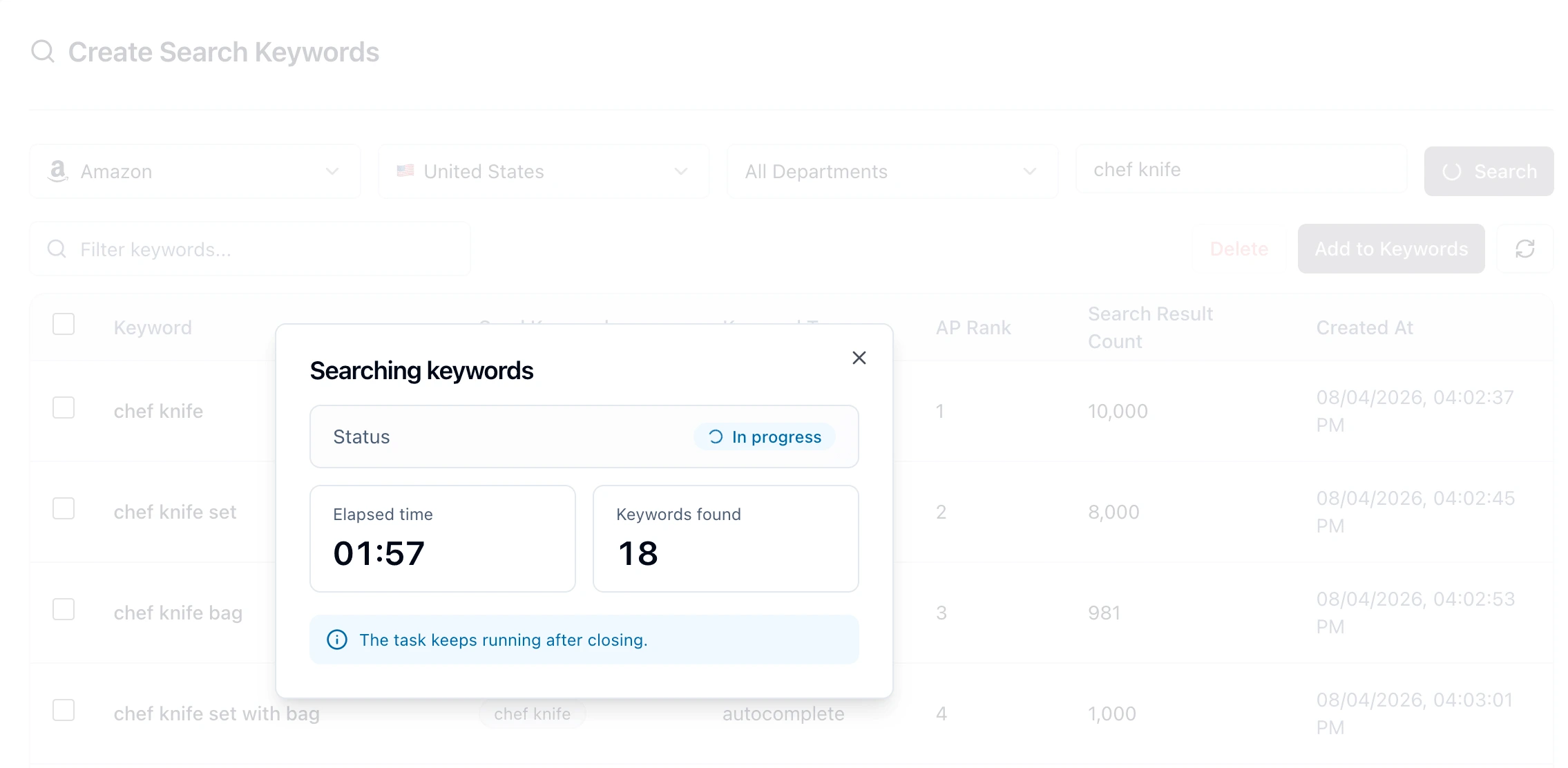
The search runs in the background, so it does not block you. A progress panel shows the current status, the elapsed time, and how many keywords have been found so far. Larger seeds return more results and take a little longer, and the search keeps running even if you close the panel — you can come back to the finished list when it is ready.
Step 4: Read the keyword results
When the search completes, you get a table of keyword results. Every row shares the same columns:
- Keyword — the suggested search phrase.
- Seed Keyword — the seed that produced it, so you can trace each result back to its source.
- Keyword Type — whether the keyword is an autocomplete suggestion or a related search.
- AP Rank — the keyword's position in Amazon's autocomplete. A higher position signals a more popular, frequently searched phrase.
- Search Result Count — how many products already compete for that term. Fewer results can mean an easier ranking opportunity.
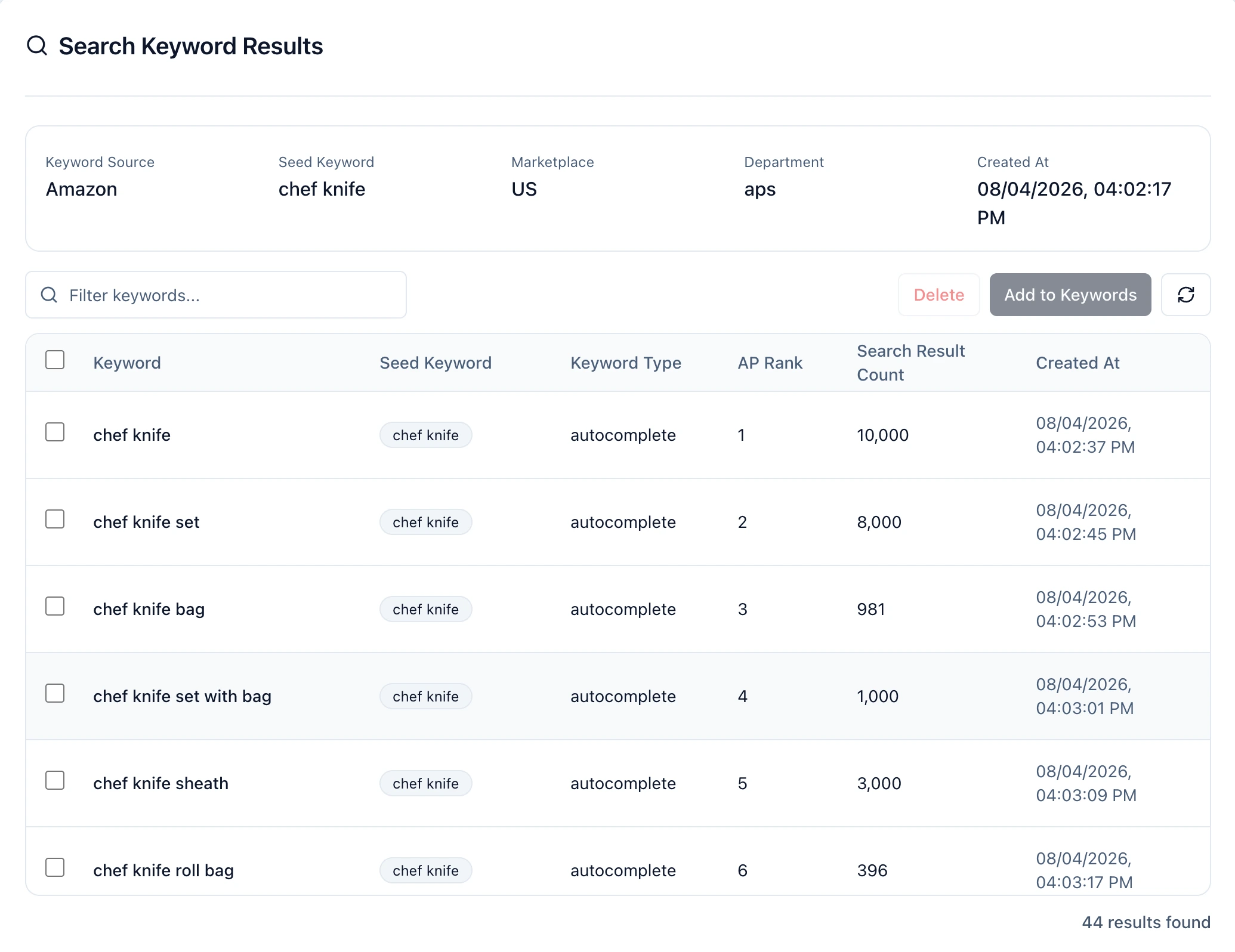
The Keyword Type column splits your results into two groups, and each one tells you something different about how shoppers search.
Autocomplete keywords
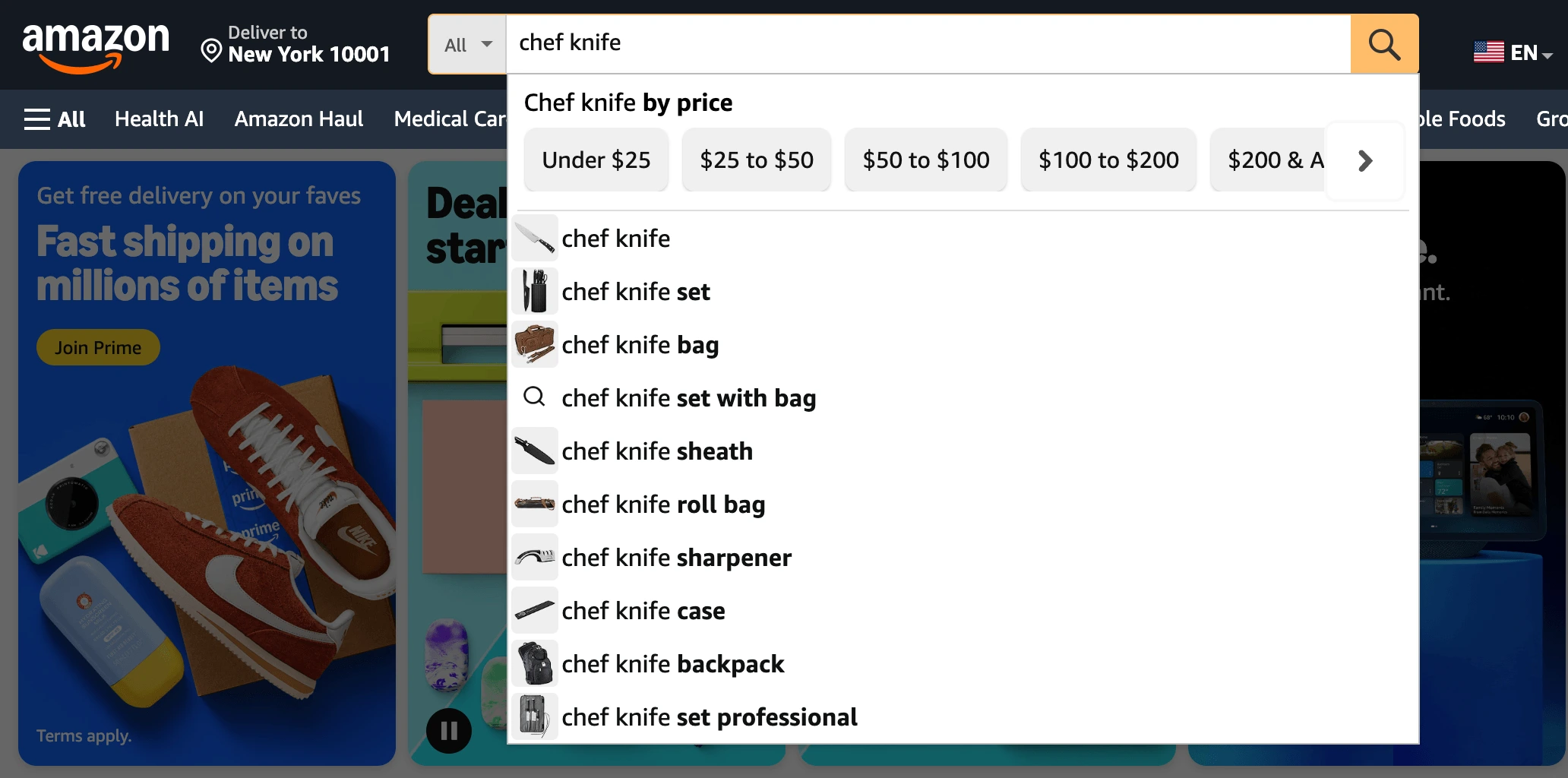
Autocomplete keywords are the phrases Amazon suggests in the search bar as a shopper starts typing your seed. They come straight from Amazon's own predictions of what people search next, so they map closely to real, high-frequency queries. AP Rank matters most here — a top autocomplete position points to a popular, actively searched phrase, which makes these strong candidates for your product title and primary keywords.
Related search keywords
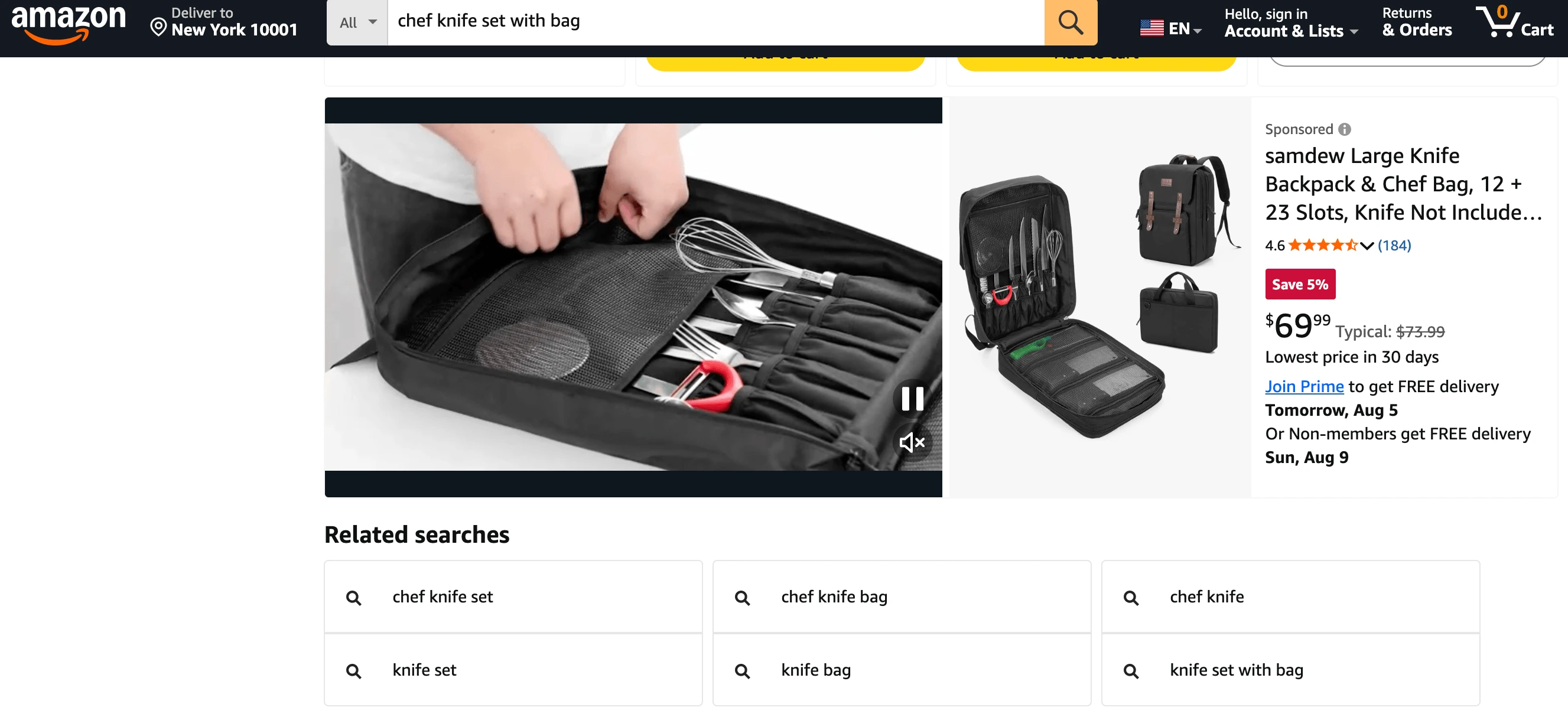
Related search keywords come from the related searches Amazon surfaces around its results page for your seed. They capture adjacent demand — nearby needs, alternatives, and use cases that shoppers explore when the exact term is not a perfect match. These are ideal for expanding into long-tail and secondary keywords, and for finding angles your competitors may have missed.
Across both groups, reading AP Rank and Search Result Count together is the quick way to spot value: popular terms with manageable competition are usually your best first targets.
Step 5: Filter, select, and save the keywords worth keeping
A single seed can return a long list, so narrow it down. Use the filter box to search within results, then select the keywords that are relevant to your product and show a good balance of popularity and competition.
Focus on:
- direct relevance to what you actually sell
- popular suggestions (strong AP rank)
- manageable competition (reasonable result counts)
- long-tail phrases that match specific buyer intent
Once you have chosen the useful terms, save them with Add to keywords. That moves them into your keyword workspace, where you can expand each one into more related and long-tail variations and sync full SEO metrics — search volume, CPC, competition, and trend — to prioritize with harder data. The tool page gives you fast, real Amazon suggestions to discover terms, and your saved list becomes the starting point for deeper expansion and analysis.
Common mistakes in Amazon keyword research
- Chasing only high-volume head terms. They are the most competitive and rarely the best first targets. Balance them with long-tail keywords.
- Ignoring backend search terms. Unused backend fields are wasted indexing. Put your leftover relevant keywords to work there.
- Repeating keywords. Amazon only needs a term indexed once. Repeating it in title, bullets, and backend wastes space you could use for new terms.
- Keyword stuffing the title. An unreadable title hurts click-through and conversion, which hurts rank. Write for the shopper.
- Researching one region or category only. If you sell in multiple marketplaces, research each one — suggestions and demand differ by country.
- Treating research as one-time. Demand shifts with seasons and trends. Revisit your keywords regularly.
- Collecting without selecting. A giant list you never filter is not a strategy. Keep the terms that are relevant and realistic.
Summary
Effective Amazon keyword research comes down to a clear sequence:
- Understand that Amazon search rewards relevance plus sales performance
- Know where keywords belong — title, bullets, description, and backend search terms
- Discover real shopper terms by searching seed keywords in your target marketplace and category
- Read the signals — AP rank for popularity, search result count for competition
- Filter for relevance and opportunity, then save the keywords worth keeping
- Expand and analyze your saved list, then place each keyword where it earns the most visibility
Keyword research is not a one-time setup. It is the ongoing engine behind Amazon visibility, and the sellers who keep refining it capture more organic traffic and spend less on ads over time. Start by pulling real Amazon suggestions for your main product term with the SellClaw Amazon keyword research tool, and build your list from there.